
Clash for Windows Download & Installation Guide
Clash for Windows (CFW) is a graphical network proxy client based on the Clash core. It is not a proxy service provider, but a powerful management tool that allows users to intelligently route and manage all network traffic on their device based on highly customizable rules. Despite the name "Windows," it is actually a cross-platform application, supporting macOS and Linux as well. The author stopped updating and deleted the GitHub repository at the end of 2023. Although old versions are still available, there is no official maintenance or updates.
Clash for Windows Download
| Platform | Version | Proxy Accelerated | Direct GitHub |
|---|---|---|---|
| Windows | 0.20.39 | Download | Download |
| MacOS | 0.20.39 | Download | Download |
Proxy Accelerated download.Installation Steps
1. Install the Application
- If you are using an Apple Silicon Mac, it is recommended to use the native macOS client ClashX
- If you are on Windows, there are more client options. If installation fails, try other clients such as Clash Verge, FlClash, or Hiddify, all of which are excellent open-source clients. We also provide detailed usage guides for them.
2. Get a Subscription
Clash for Windows is a proxy tool, not a proxy service provider. Installing it alone does not enable internet access. You need a how-choose-service (service provider) to get started. If you are unsure how to choose a provider, read How to Choose the Right Provider↗.If you don't have a how-choose-service yet, Learn how to choose a provider↗
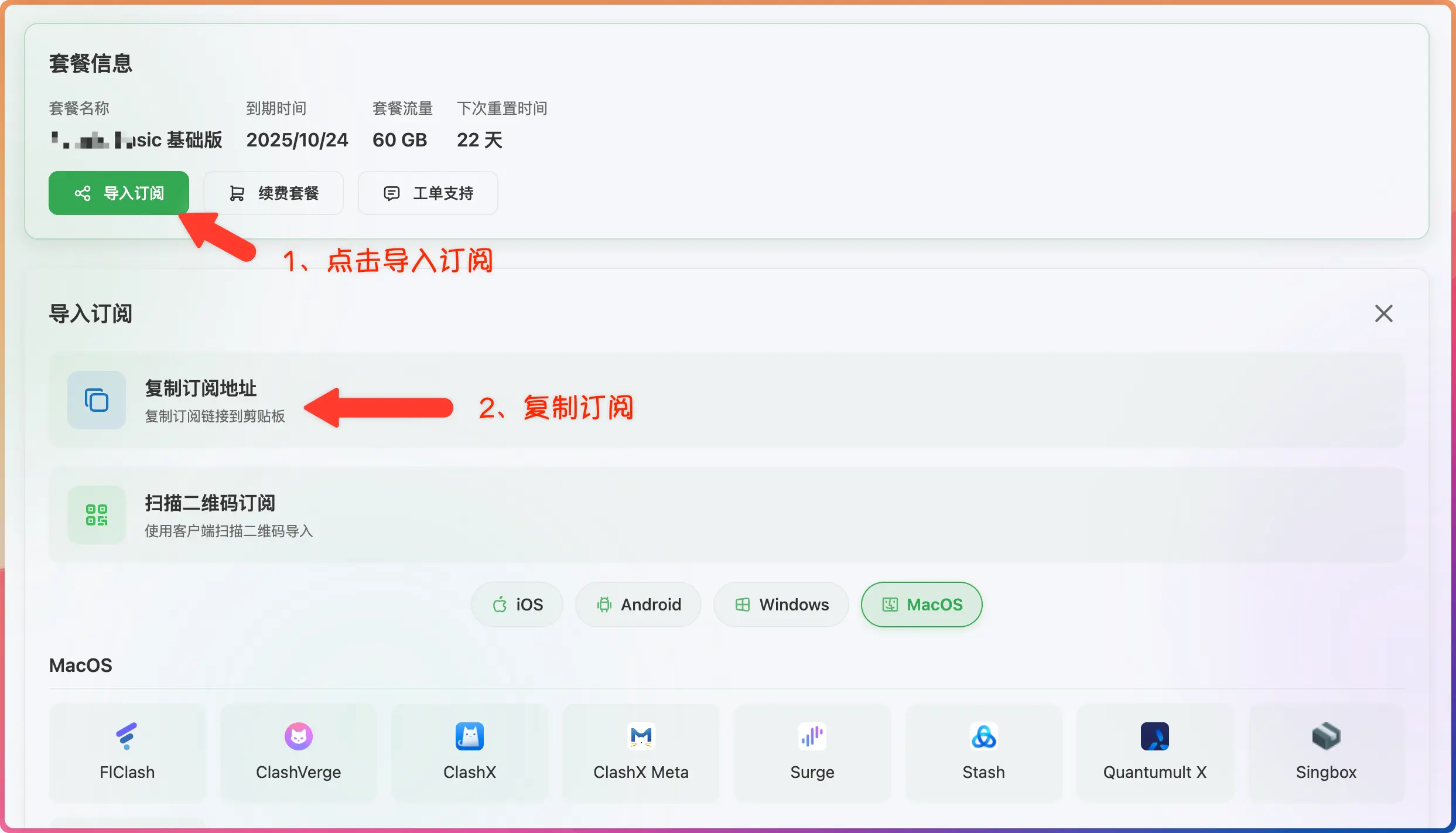
- Log in to the provider's official website
- Click to import how-choose-service
- Click to copy how-choose-service
3. Import Subscription
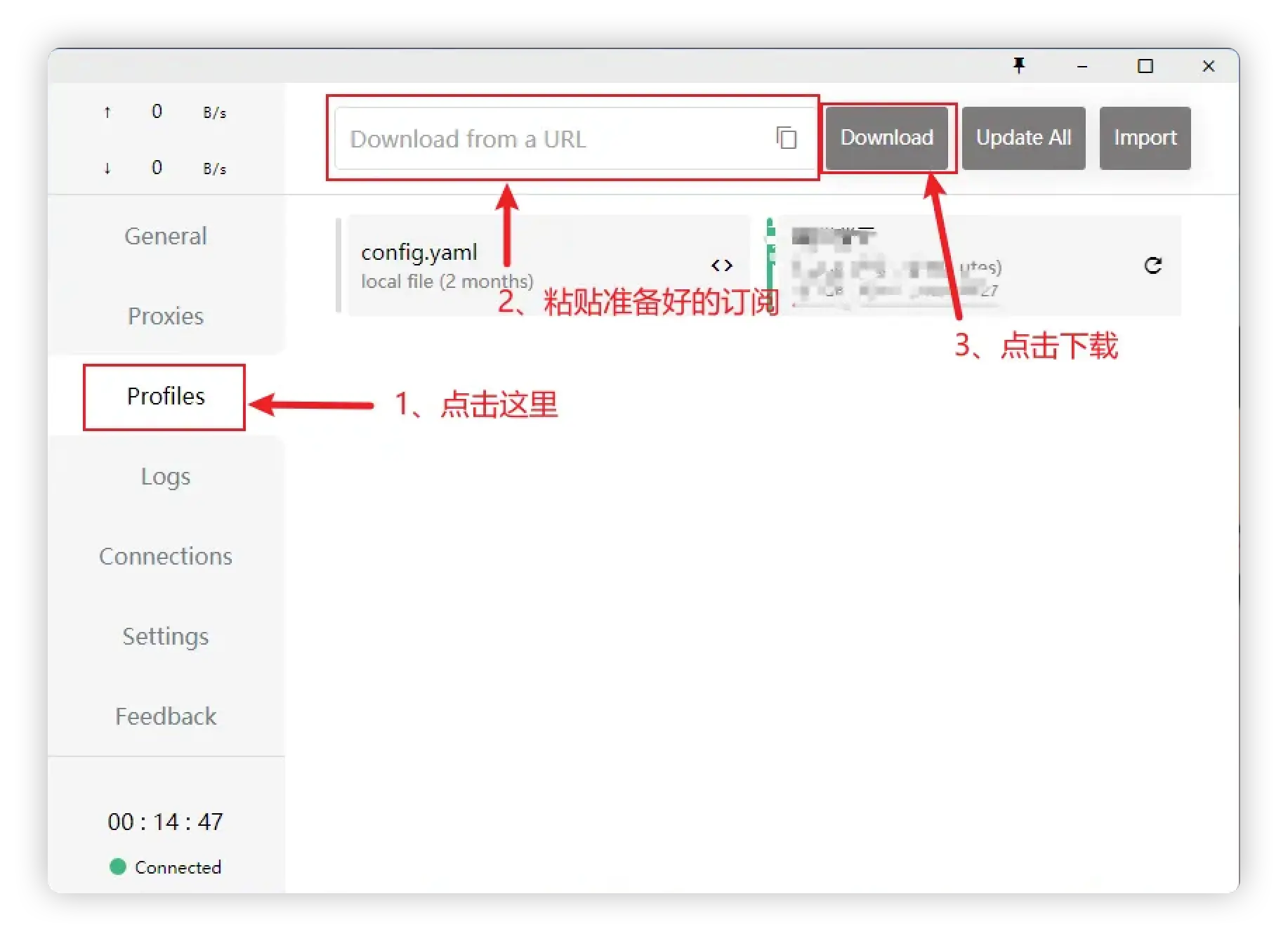
- Paste the how-choose-service address
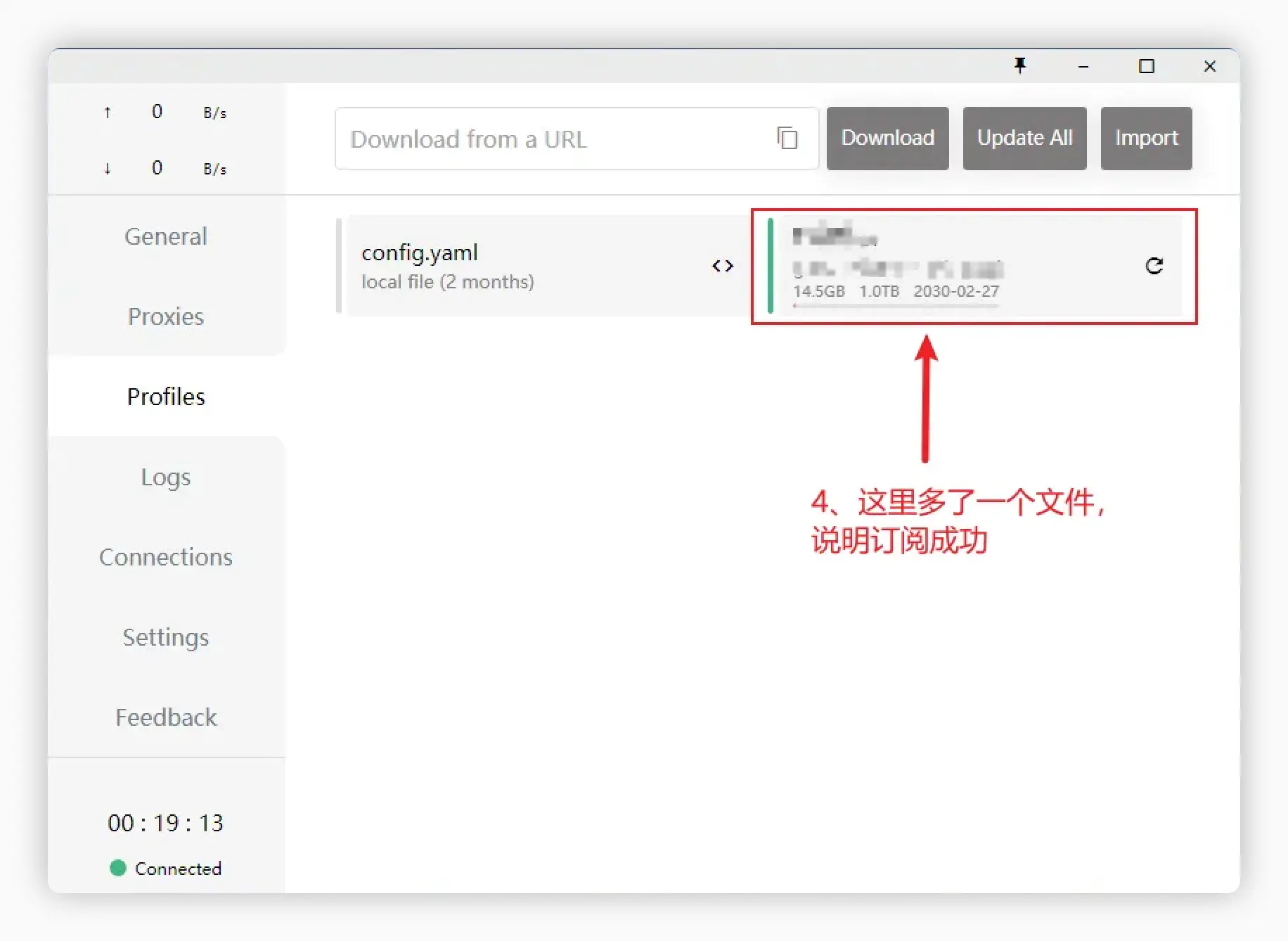
- Click to download how-choose-service
4. Start Proxy
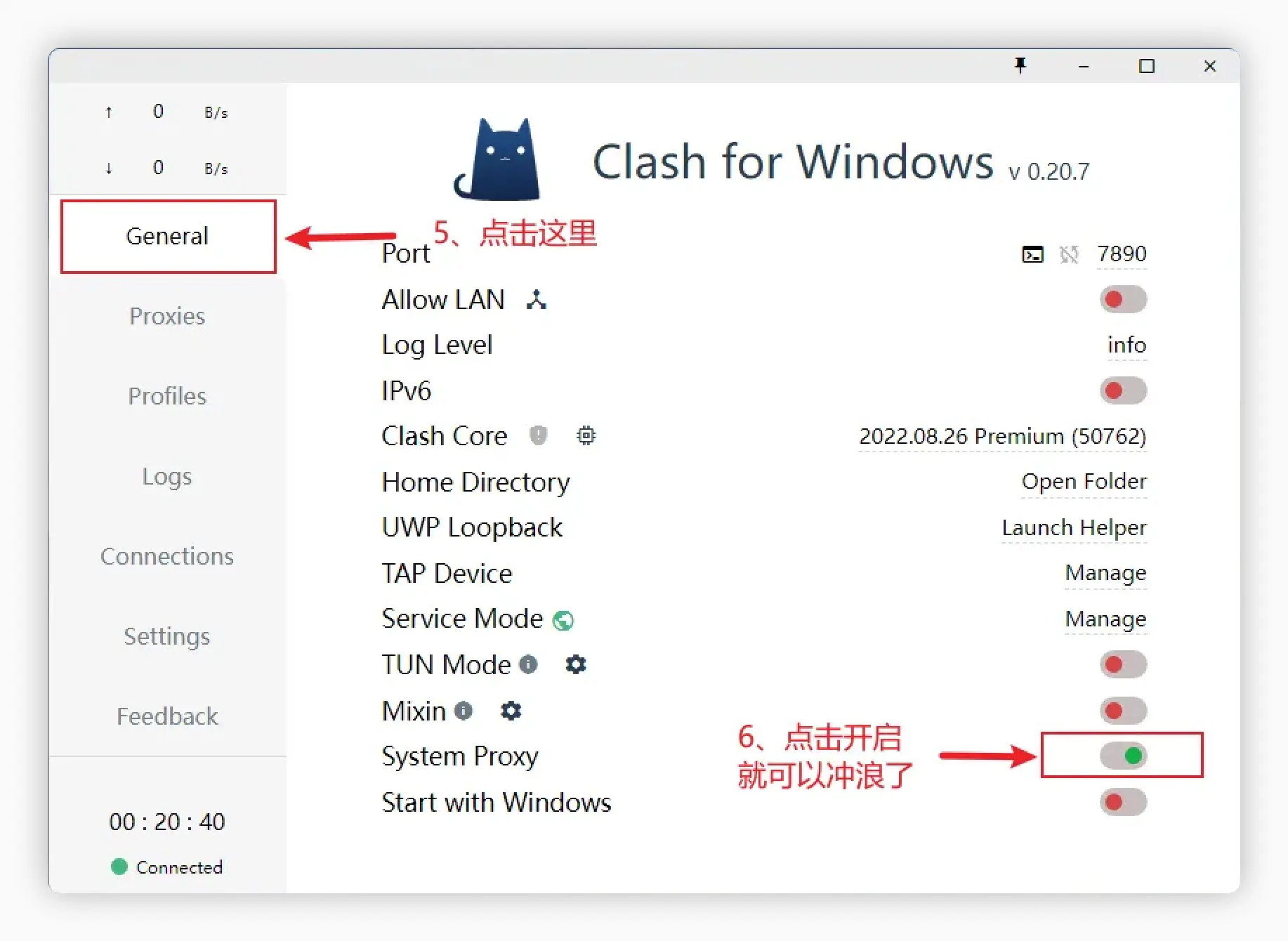
- Click to start the proxy
If you have tried many tutorials and still cannot get online, the recommendation is to switch to other open-source clients. After all, your need is to access the internet, not to struggle with it. Other clients are also very easy to use, such as Clash Verge, FlClash, Hiddify, etc.
Advanced Guide (Optional)
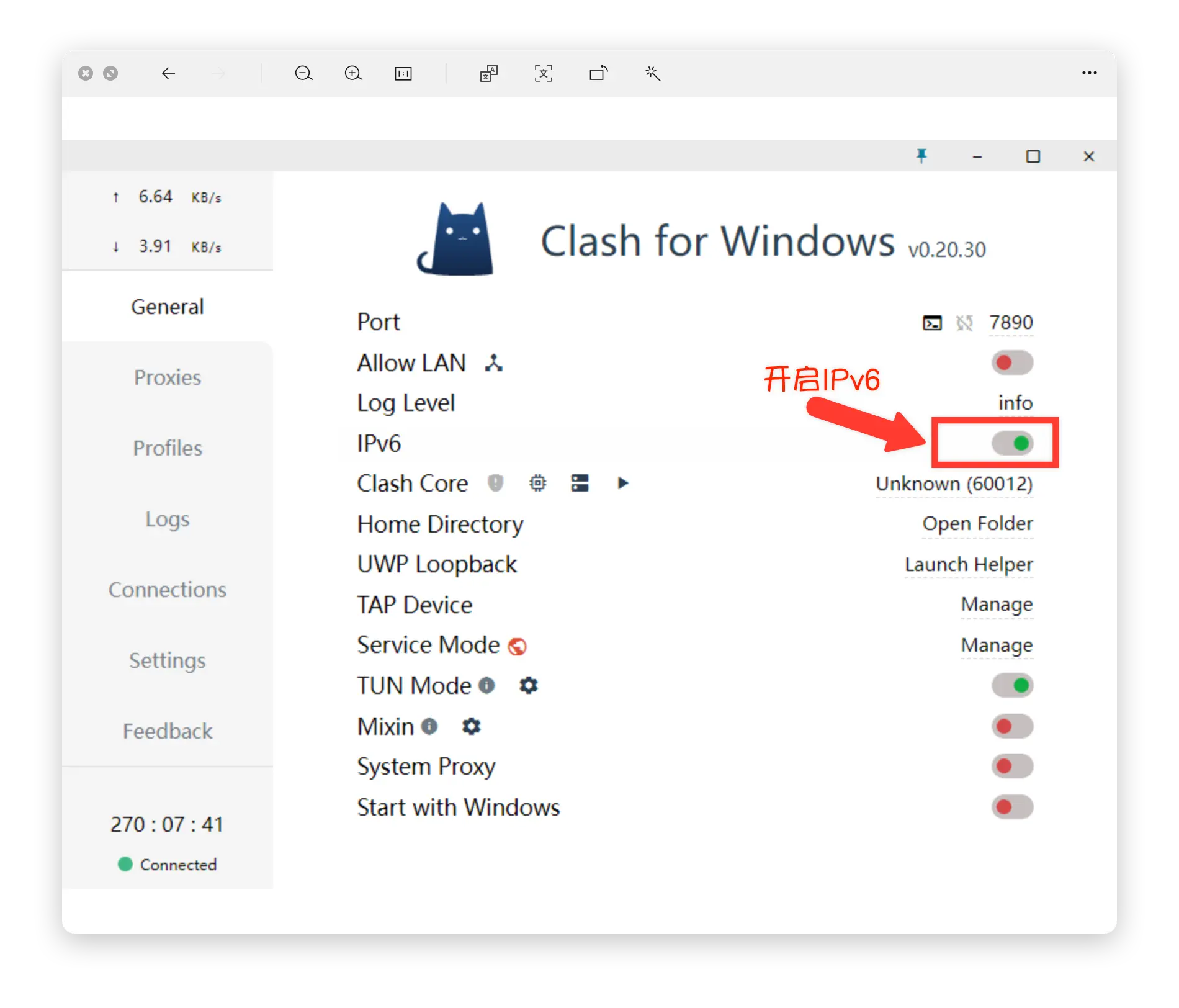
Enable IPv6
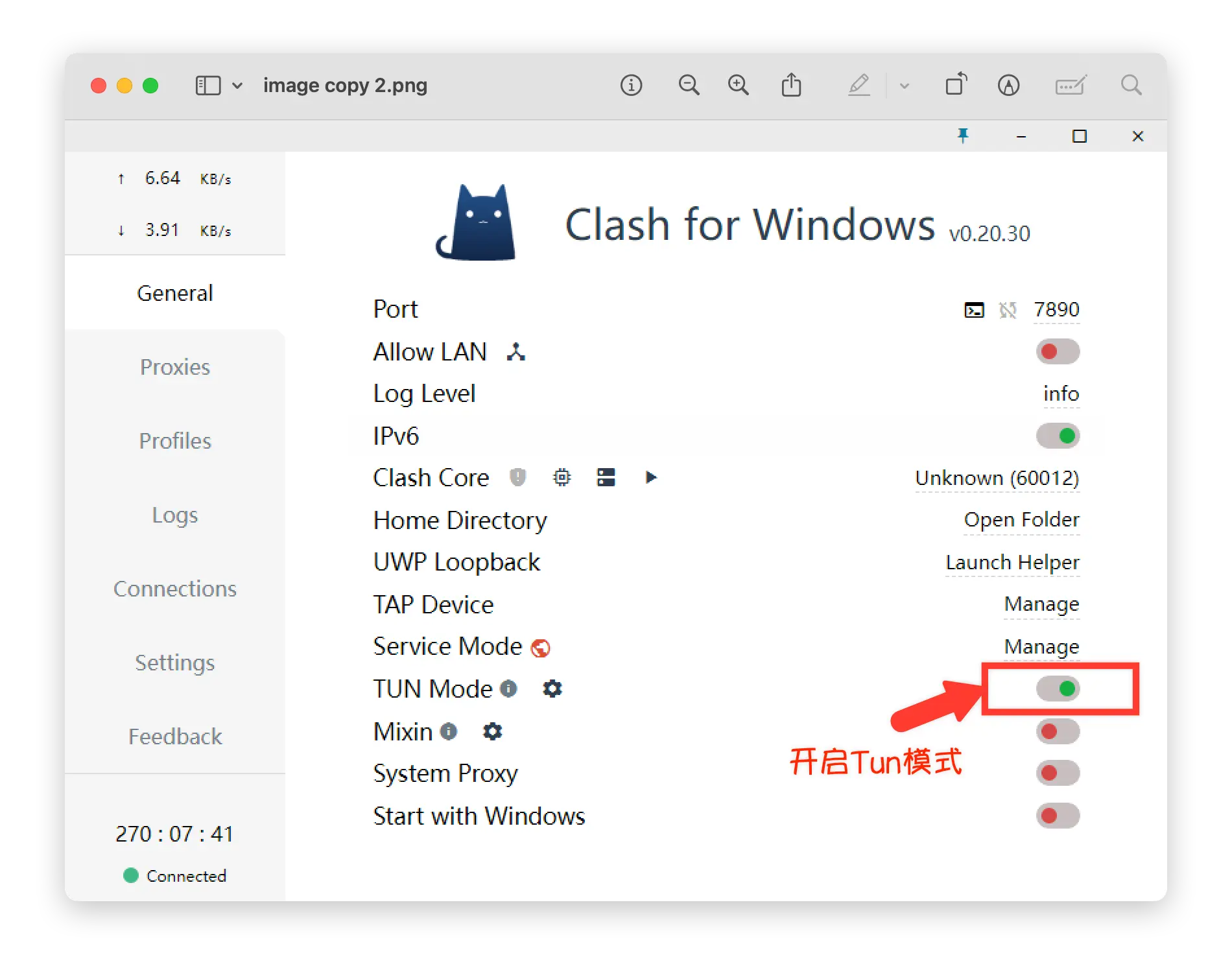
Enable TUN Mode
Node Availability Test
Common Issues
Node Protocol Compatibility Issues
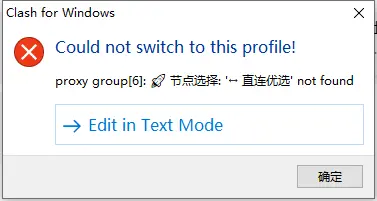 If you get an error when downloading a how-choose-service, it is because Clash for Windows does not support the latest protocols. Please try Clash Verge↗ or other
 Windows clients for a better experience.
macOS Installation Fails
Clash for Windows only supports Intel chips. If you are using an Apple Silicon Mac, please use other clients such as the native ClashX↗ for a better experience.