
Advanced Settings
These features are not required for the first setup. Confirm that System Proxy works before enabling advanced options one at a time.
Update a profile
Manually update the subscription when nodes, rules, or traffic information no longer appear current.
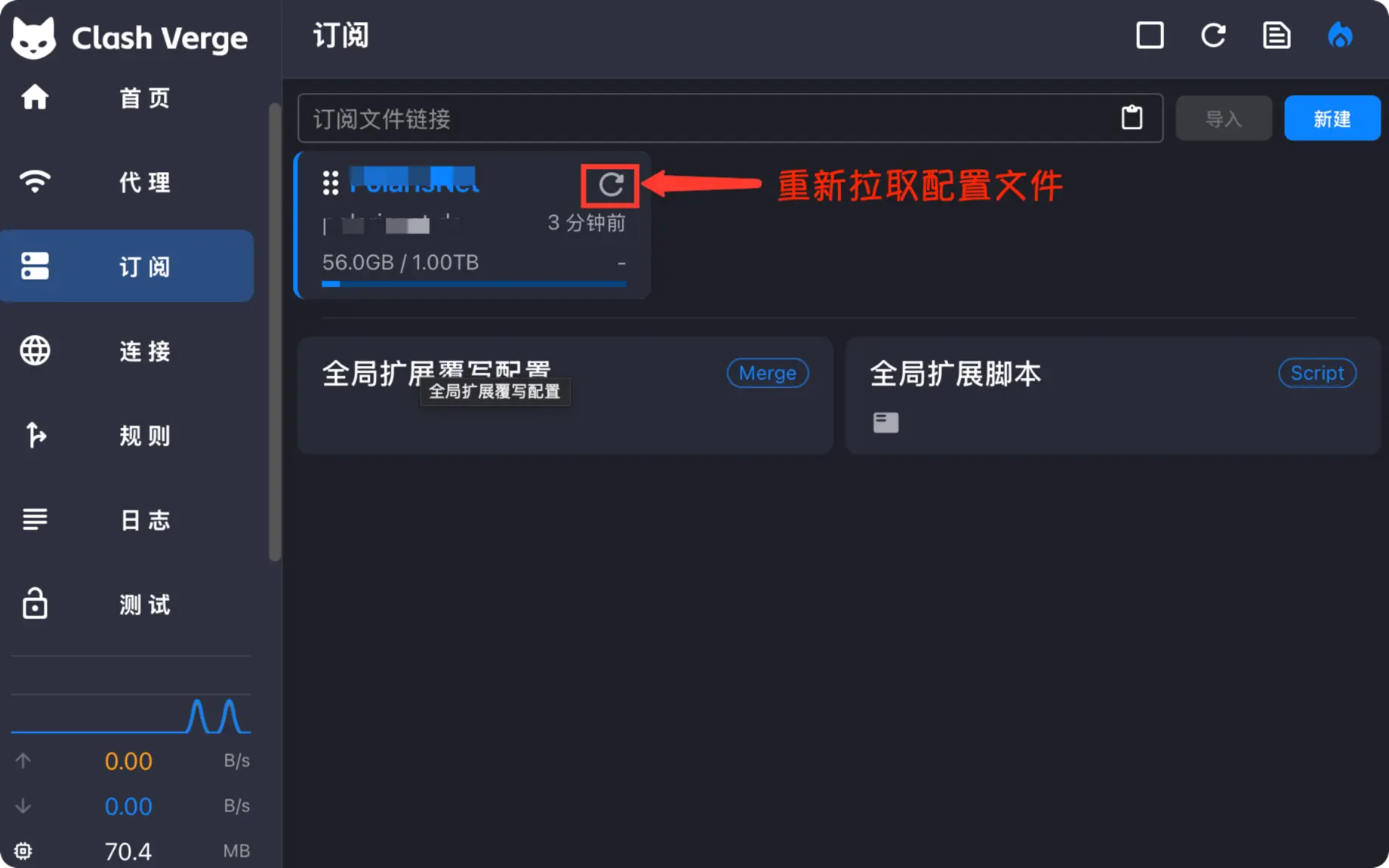
If the update fails, check the subscription status and current network before deleting the profile.
Global mode
Global mode sends most traffic already captured by Clash through the selected node. It is useful for briefly checking whether a problem is caused by routing rules.
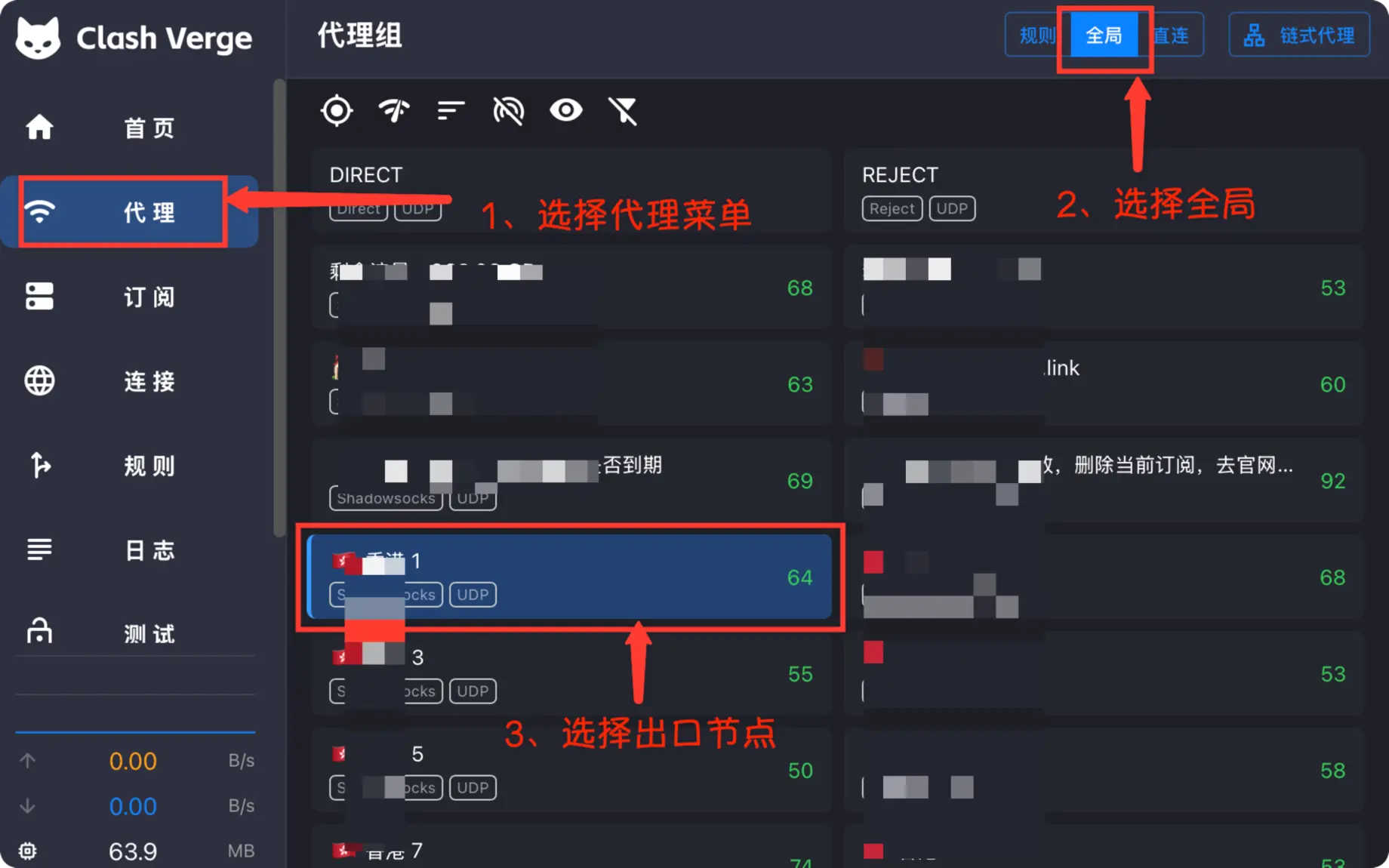
Open the Proxies page
Select Proxies in the left sidebar to open the proxy groups and node list.
Switch to Global mode
Select Global at the top right of the page. Do not select Direct, which bypasses proxy nodes.
Select an outbound node
Choose a node that passes its latency test. The selected node is highlighted and becomes the outbound route for traffic handled by Clash.
Keep a traffic entry point enabled
Keep System Proxy enabled for browsers and other applications that honor it. Applications that ignore the system proxy also require TUN mode, described below.
Return to Rule mode after testing so traffic that should remain direct does not take an unnecessary route.
TUN mode (virtual network adapter)
TUN mode creates a virtual network interface and can capture traffic from applications that ignore the system proxy.
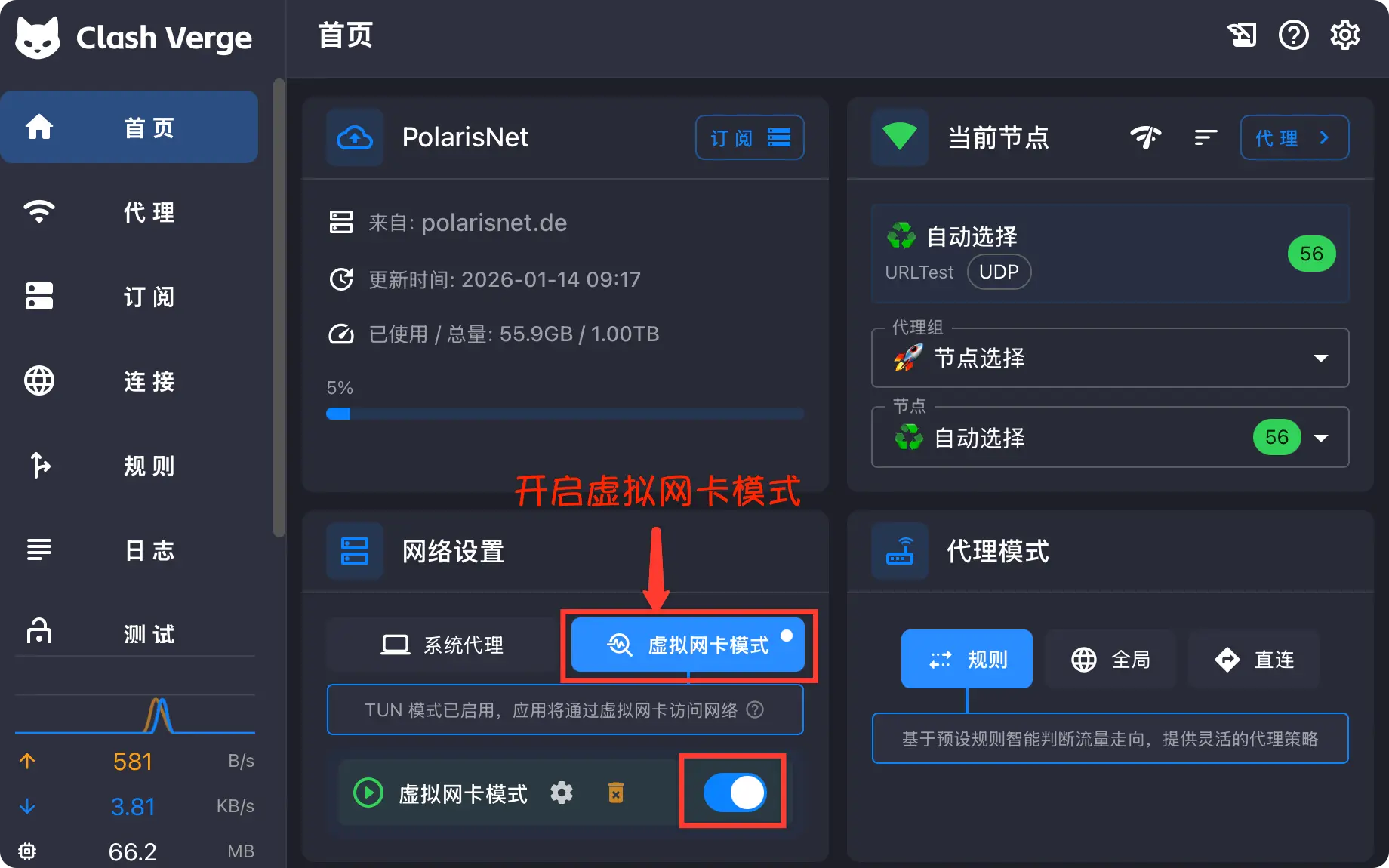
Return to the dashboard
Select Home in the left sidebar and find Virtual Network Adapter under network settings. Some newer versions label this option TUN Mode.
Enable the virtual network adapter
Select Virtual Network Adapter, then turn on its switch. Windows or macOS may request administrator permission the first time; confirm that Clash Verge Rev triggered the prompt.
Wait for TUN to start
Wait until the client reports that TUN mode is enabled, then test the application that previously could not connect. If the switch turns itself off, install Service Mode in the client settings or restart the client with administrator privileges.
Choose the appropriate proxy mode
Keep Rule mode when applications should follow the profile rules. Switch to Global and select an outbound node only when most captured traffic should use the same node.
Consider TUN mode when:
- The browser works, but a game or desktop application cannot connect.
- A command-line tool has no separate proxy configuration.
- You need broader UDP handling.
IPv6
Enable IPv6 only when the local network, router, and profile all support it correctly.
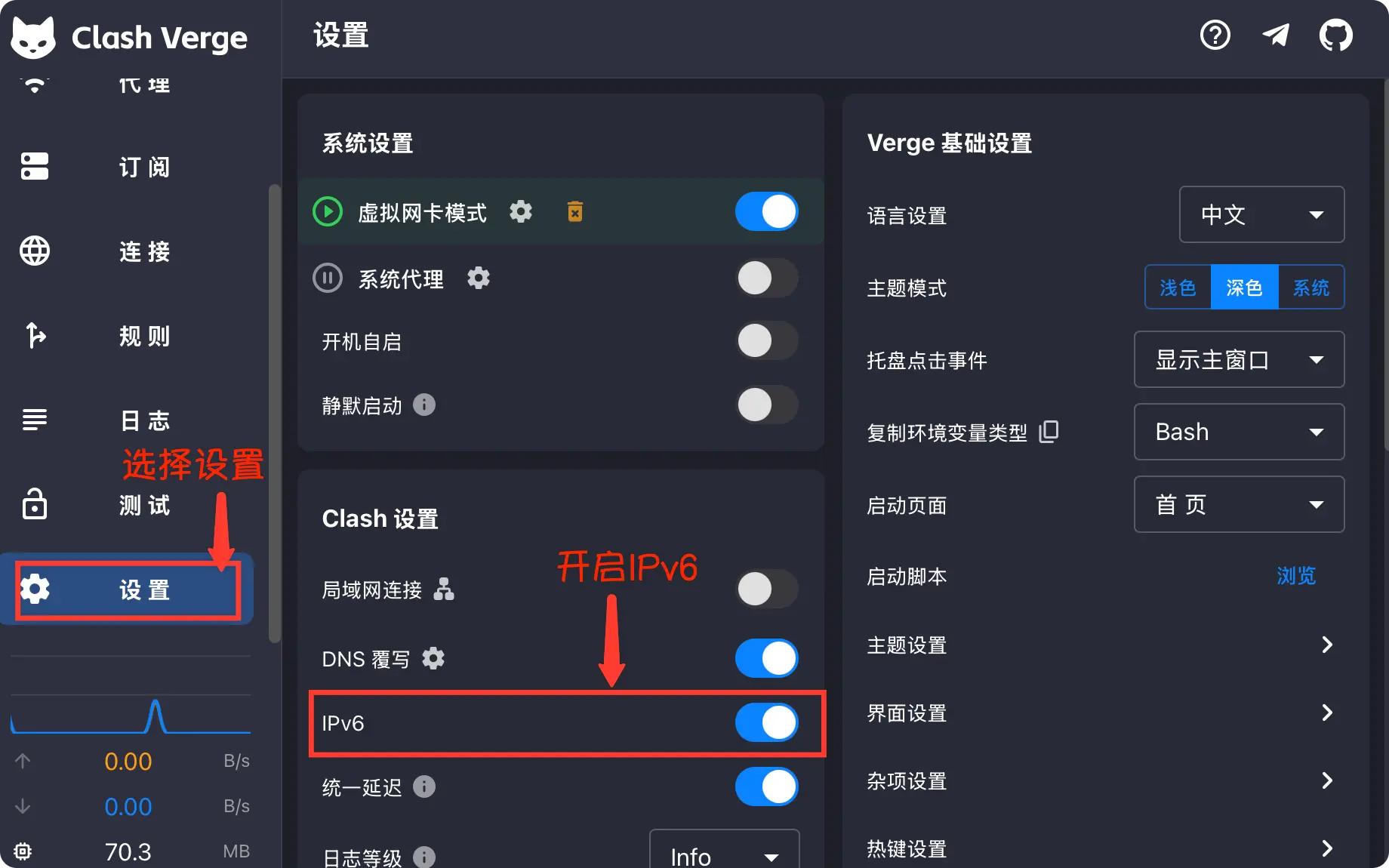
If connectivity becomes unreliable after enabling IPv6, disable it and compare the results. Enabling the client option cannot provide IPv6 when your internet connection does not already support it.
A safe way to change settings
- Change one option at a time and test immediately.
- Record the previous state so you can restore it.
- Leave unfamiliar DNS, port, and routing options at their defaults.
- Prefer Rule mode for everyday use and enable TUN only when necessary.