
Enable the System Proxy
After importing a profile and selecting a node, return to the dashboard and enable System Proxy.
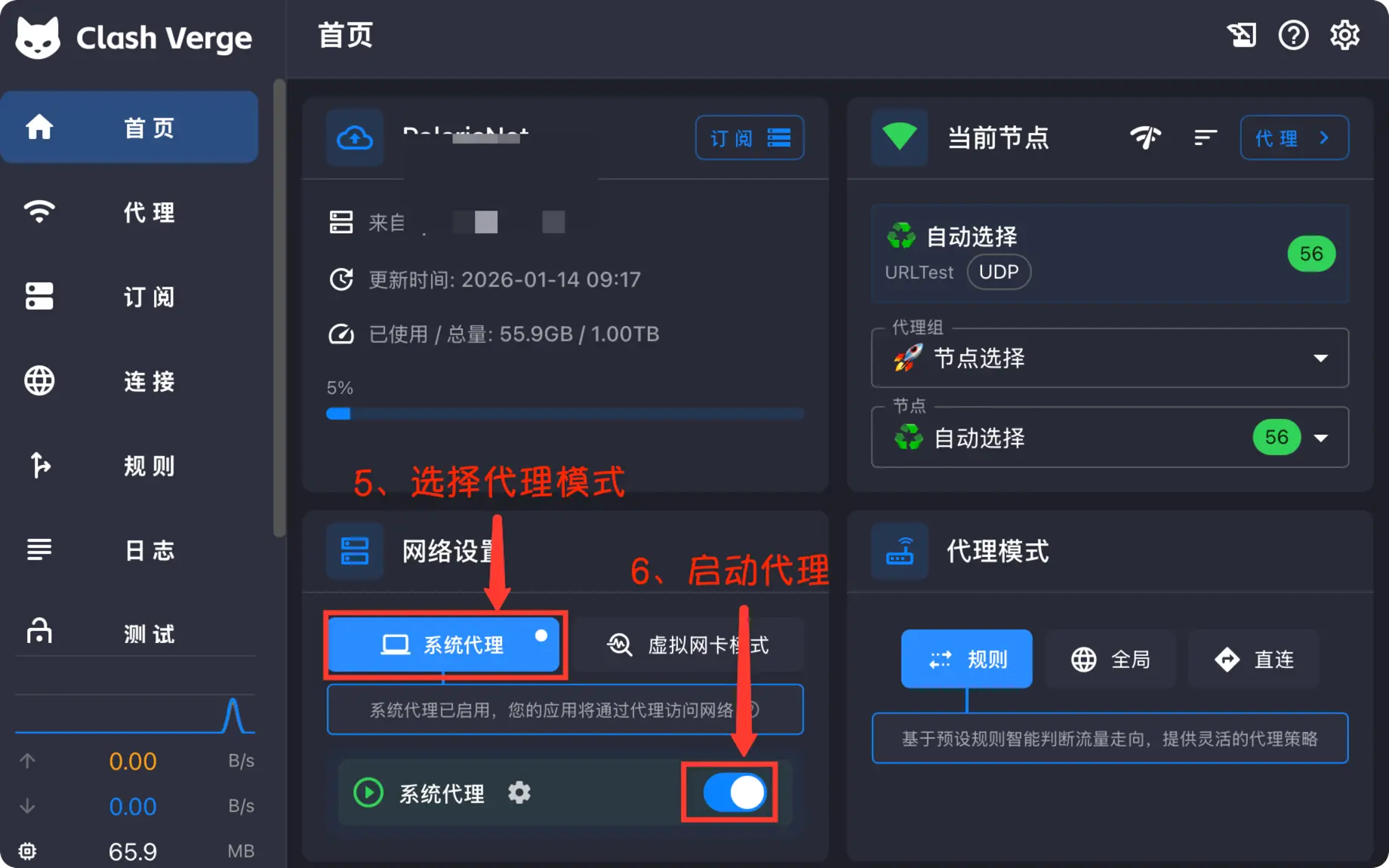
Recommended startup sequence
Select Rule mode
Rule mode is recommended for everyday use. The client follows the profile rules to decide which connections go directly and which use the proxy.
Confirm that a node works
Choose a node that passes a latency test, or select an automatic policy group.
Enable System Proxy
Turn on System Proxy. Windows and macOS may display a permission prompt; make sure it was triggered by the client you just opened.
Verify the connection
Open a new browser tab and visit the intended website. Do not rely only on refreshing a failed page, because old connections and DNS results may still be cached.
Common proxy modes
| Mode | Behavior | Recommendation |
|---|---|---|
| Rule | Routes traffic according to the profile rules | Recommended for everyday use |
| Global | Sends most traffic through the selected node | Use temporarily for testing or special cases |
| Direct | Bypasses the proxy | Use when pausing the client |
Follow Enable Global mode → to switch modes and select an outbound node.
The browser works but another app does not
Some games, command-line tools, and specialized applications ignore system proxy settings. Check whether the application has its own proxy setting before considering TUN mode.
Enable TUN (virtual network adapter) mode →
Stop the client safely
Disable System Proxy before quitting the client. If the client exits unexpectedly and networking does not recover, reopen it and turn the proxy off, or inspect the operating system's proxy settings.